

If you have recently handed your child their first smartphone, your stress levels have probably skyrocketed. Handing an eight-year-old an internet-connected device feels like dropping them off in the middle of a bustling, unpoliced city and hoping they find their way home safely.
As a responsible parent, your first instinct is likely to rush to the App Store or Google Play Store and search for “Parental Control Apps.” You will be instantly bombarded with dozens of third-party software subscriptions promising to lock down your child’s phone, monitor their every move, and keep them safe—for a monthly fee of $10 to $20.
But before you pull out your credit card, you need to know a closely guarded tech secret: The tools you need are likely already in your pocket, and they are completely free.
Over the last few years, tech giants like Apple and Google faced massive public pressure regarding internet addiction and child safety. In response, they built incredibly powerful, native parental control features directly into the core operating systems of iPhones and Androids.
Because these tools are baked directly into the phone’s software, they are often more stable, faster, and harder for tech-savvy kids to bypass than third-party apps you download from the store.
In this comprehensive 2026 review, we are going to dive deep into the free parental control ecosystems provided by Apple and Google. We will explore their best features, evaluate how easy they are to use, and highlight their limitations so you can decide if these free built-in tools are enough to keep your family safe.
The Apple Ecosystem: iOS Screen Time & Family Sharing
If your household is dominated by iPhones and iPads, Apple provides a robust suite of tools collectively managed under “Family Sharing” and “Screen Time.” Apple’s approach to parental controls is highly focused on privacy and restricting device functionality.
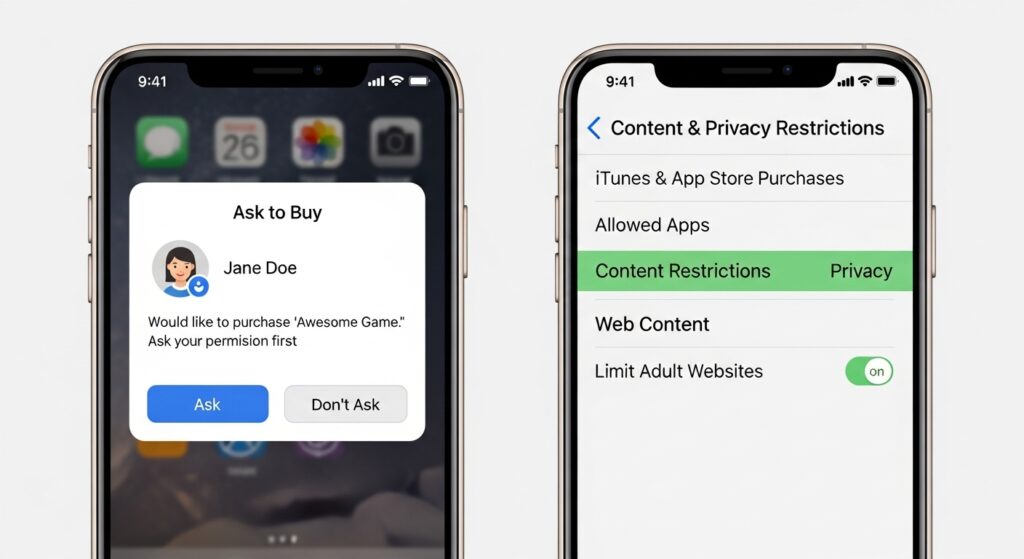
1. Content & Privacy Restrictions (The Digital Bouncer)
This is arguably the most powerful free tool on an iPhone. Hidden inside the Screen Time menu, the “Content & Privacy Restrictions” section acts as a digital bouncer for your child’s device.
- Web Filtering: You can automatically filter website content to limit access to adult websites. You can also create a strict “Allowed Websites Only” list, meaning your child can only visit sites like Wikipedia or PBS Kids, and the rest of the internet is completely blocked.
- Media Ratings: You can prevent your child from downloading R-rated movies, listening to music with explicit lyrics, or playing games rated for audiences 17 and older.
- Preventing App Deletion: A common trick kids use to hide their activity is deleting a social media app before walking into the house and redownloading it later. Apple allows you to block the ability to delete apps, stopping this trick in its tracks.
2. Communication Limits (Stopping Strangers)
One of the biggest fears parents have is an online predator contacting their child via text or a phone call. Apple’s “Communication Limits” feature solves this brilliant. You can set the phone to only allow incoming and outgoing calls, FaceTimes, and text messages from people specifically saved in your child’s Contacts list. If a stranger tries to call them, the phone simply will not ring.
3. Ask to Buy (The Wallet Protector)
Have you ever heard horror stories of a child accidentally spending $500 on digital coins in a mobile game? Apple’s “Ask to Buy” feature completely eliminates this risk. Whenever your child tries to download a new app (even a free one) or make an in-app purchase, the download pauses. A notification pops up on your iPhone asking for your fingerprint or Face ID approval. You can review the app, and if you approve it, it downloads on their phone.
4. Find My (Location Tracking)
Apple’s “Find My” network is legendary for its accuracy. By setting up Family Sharing, you instantly get access to your child’s real-time location. You can even set up geofence alerts to notify you when they leave school or arrive home. (For a deep dive into how to configure this without causing household arguments, read our complete guide on How to Track Your Child’s Device Location Safely).
The Verdict on Apple’s Native Tools: Apple’s built-in parental controls are exceptional for restricting what a device can do. They are deeply integrated and highly secure. You can learn more about configuring these settings directly on the Official Apple Family Sharing Support Page.
The Android Ecosystem: Google Family Link
If your child uses a Samsung, Google Pixel, or any other Android device, Google’s free solution is called Family Link. Unlike Apple, where everything is hidden inside the settings menu, Family Link is a standalone app you download on your parent phone to control your child’s device remotely.
1. App Approvals and Blocking
Similar to Apple’s “Ask to Buy,” Family Link requires your child to ask for permission before downloading anything from the Google Play Store. But Google takes it a step further with app management. From your parent dashboard, you can see a list of every app installed on your child’s phone. With the flick of a switch, you can hide an app completely. For example, if you catch your child using TikTok when they shouldn’t be, you can disable the app from your phone. It disappears from their screen instantly without actually deleting their account data.
2. YouTube and SafeSearch Filtering
Since Google owns YouTube and the world’s largest search engine, their filtering capabilities are top-tier. Through Family Link, you can force Google Chrome to use “SafeSearch,” filtering out sexually explicit results. More importantly, you can restrict their YouTube access. You can lock them into “YouTube Kids” (for young children) or set up a “Supervised Experience” for young teens, which filters out mature creator content but allows educational and gaming videos.
3. Detailed App Activity Reports
Where Apple shows you basic screen time numbers, Google Family Link provides incredibly detailed insights. You can look at your dashboard and see exactly how many minutes your child spent on Minecraft versus how many minutes they spent on their math homework app today, yesterday, or over the last month.
4. Device Locking and Bedtime Schedules
Google makes it incredibly easy to lock a device down. If it is time for dinner and your child will not put the phone down, you can tap “Lock Now” on your parent app. Their phone screen will instantly lock, displaying a message that it is time for a break. (We cover the exact setup of these schedules in our guide: A Parent’s Guide to Setting Up Screen Time Limits).
The Verdict on Google Family Link: Google Family Link is arguably more user-friendly for the parent than Apple’s system because of its excellent central dashboard. It is an incredibly powerful, free tool for managing Android devices. You can explore the full feature list on the Google Family Link Portal.
The Missing Piece: What Free Tools CANNOT Do
Both Apple and Google have provided parents with fantastic, free tools to restrict purchases, block adult websites, and set curfews. If you have a child between the ages of 7 and 12, these built-in features are usually more than enough.
However, as your child becomes a teenager, their digital life becomes much more complex, and the limitations of these free tools become painfully obvious.

1. They Cannot Read Direct Messages Neither Apple Screen Time nor Google Family Link allows you to read the contents of your child’s text messages, WhatsApp chats, or Instagram Direct Messages. If your child is suffering from online harassment, the built-in tools will not alert you. (To understand the severity of this issue, read our guide on Cyberbullying in 2026: Signs Your Child is a Victim).
2. They Cannot Monitor Social Media Feeds You can use Apple and Google tools to limit your child to one hour of TikTok a day. However, you have absolutely no idea what they are watching during that hour. The free tools cannot scan social media feeds for inappropriate content or dangerous trends. (Learn more about these specific threats in Top 5 Dangers Kids Face on Social Media).
3. Tech-Savvy Teens Can Bypass Them Teenagers are highly motivated and incredibly resourceful. A quick search on YouTube will show a teenager dozens of ways to bypass Apple Screen Time limits (such as deleting and reinstalling apps, changing the time zone, or using screen recording to steal the parent’s PIN code).
Furthermore, these tools do not protect the device from malicious software. If a teenager clicks a bad link and accidentally installs spyware, built-in parental controls will not detect it. (Ensure your devices are clean by following our Malware Detection Guide).
When Should You Upgrade to Paid Third-Party Software?
The free tools provided by Apple and Google are designed to create boundaries, not to perform deep surveillance.
If you are dealing with a high-risk situation—such as a teenager who is sneaking out at night, showing signs of severe depression, or communicating with strangers online—you may need more visibility than the free tools provide.
In these specific scenarios, parents often turn to premium, third-party monitoring applications. These tools are designed to alert parents to specific “trigger words” typed on a keyboard, provide deep social media monitoring, and offer historical GPS tracking.
While we always advocate for open communication and trust over strict surveillance, we understand that sometimes extreme safety measures are required. To help parents navigate this complex space, organizations like Common Sense Media offer great advice on age-appropriate tech usage.
Conclusion: Start Free, Upgrade Later
Before you spend your hard-earned money on a monthly subscription for a parental control app, take 30 minutes to explore the settings already available on your devices.
By utilizing Apple’s Content & Privacy Restrictions or Google’s Family Link, you can instantly eliminate 80% of the risks associated with giving a child a smartphone. You can stop unauthorized credit card purchases, filter out the worst of the internet, and ensure they are not staying up until 4:00 AM playing video games.
Start with these free, built-in tools. Establish clear rules, keep the lines of communication open, and monitor how your child handles their digital responsibilities. If they prove they can navigate the digital world safely, the free tools will be all you ever need. If they struggle, you can always explore more robust, premium monitoring options later.

Munir is a digital security researcher and software reviewer
with over 5 years of experience testing privacy tools, parental
control applications, and cybersecurity software. He founded
Tech Monitor Pro to provide honest, hands-on reviews that help
families and professionals make smarter decisions about the
tools they use online. When he is not testing the latest VPN
or email verification platform, he writes practical guides on
digital safety and online privacy.