
Imagine waking up tomorrow morning, reaching for your smartphone, and finding out it refuses to turn on. The screen is black. The phone is completely dead.
For a brief moment, you might worry about the financial cost of replacing the physical device. But then, a much colder, deeper panic sets in. What about the thousands of family photos saved in the gallery? What about your business contacts, the notes you took for a massive project, and the unread text messages from loved ones? If you do not know how to backup your digital life, a single hardware failure, a stolen phone, or a malicious malware infection can wipe out your memories and your work in an instant.
In 2026, we do not just use devices; our lives are stored entirely inside them. Yet, despite relying on these fragile pieces of glass and metal for everything, millions of people operate every day without a safety net.
Cybersecurity experts agree that data loss is not a matter of if it will happen, but when it will happen. Hard drives crash, phones get dropped in water, and hackers deploy ransomware to lock your files.
If you are tired of living with the anxiety of potential data loss, you are in the right place. In this comprehensive manual, we will show you exactly how to backup your digital life. We will cover the golden rules of data protection, step-by-step methods for smartphones and computers, and how to automate the process so you never have to worry about losing a file again.
The Golden Standard: The 3-2-1 Backup Rule
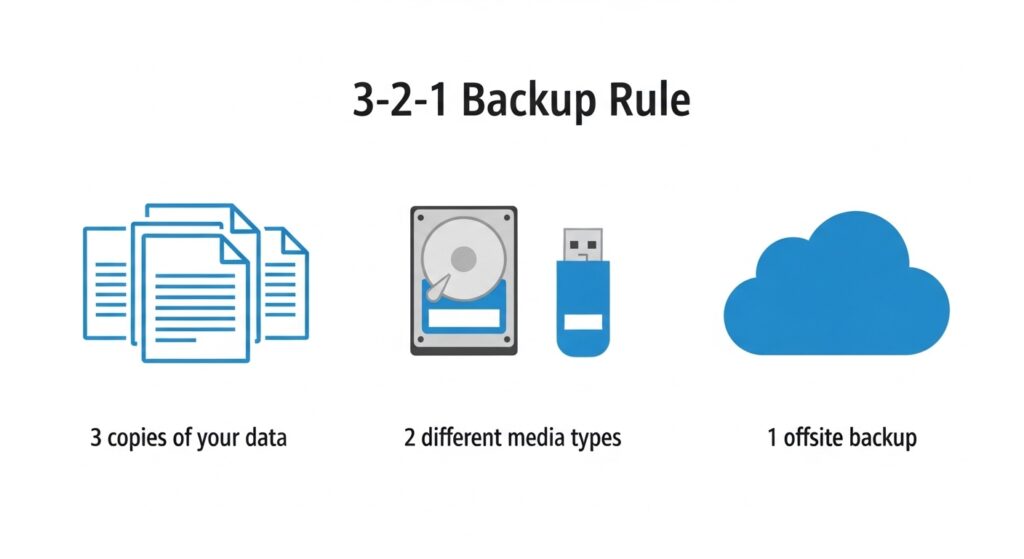
Before we dive into the specific settings on your phone or laptop, you must understand the foundational philosophy of data protection. When professionals discuss how to backup your digital life, they always start with the famous 3-2-1 Backup Rule.
Created by IT professionals decades ago, this rule remains the absolute best defense against hardware failure, natural disasters, and cyberattacks. Here is how it works:
- 3 Copies of Your Data: You should never have just one copy of an important file. You need the original file, plus two backups.
- 2 Different Types of Storage Media: Storing two backups on the exact same laptop is useless if the laptop is stolen. You should use two different formats, such as an external Solid State Drive (SSD) and a USB flash drive.
- 1 Offsite Location: At least one of your backups must be stored far away from your physical house. In the past, this meant keeping a hard drive at a bank vault or a friend’s house. Today, the “offsite” location is simply secure Cloud Storage.
If you follow this framework, it is mathematically nearly impossible to lose your data permanently.
Step 1: Securing Your Smartphone (iOS and Android)
Your smartphone is the most vulnerable device you own. It goes everywhere with you, making it highly susceptible to being lost, stolen, or dropped. Learning how to backup your digital life starts here.
Backing Up an iPhone (iOS)
Apple makes the backup process incredibly seamless through iCloud.
- Connect your iPhone to a secure Wi-Fi network. (Never do this on an unencrypted network. Read our Public Wi-Fi Safety Guide for more details).
- Open the Settings app and tap your name at the very top of the screen.
- Tap iCloud, then select iCloud Backup.
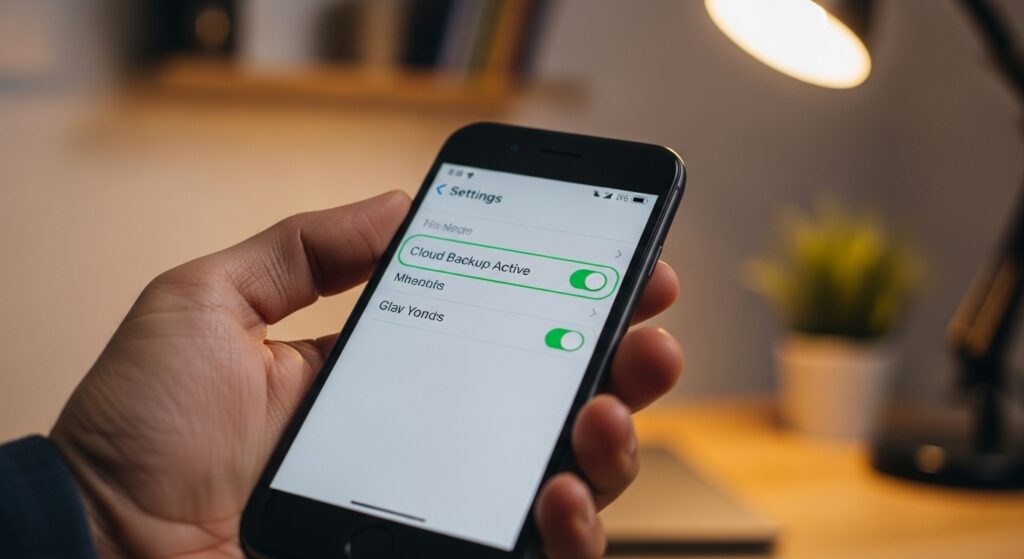
- Toggle the switch to On.
- Tap Back Up Now to force an immediate backup. Moving forward, your iPhone will automatically back up your photos, messages, and app data every night when it is plugged into a charger and connected to Wi-Fi.
Backing Up an Android Device
Google provides an equally robust cloud backup system built directly into the Android operating system.
- Connect your Android phone to Wi-Fi.
- Open the Settings app.
- Scroll down and tap on Google, then tap on Backup.
- If it is your first time, tap Turn on by Google One.
- Tap Back up now. This automatically secures your contacts, app data, call history, and SMS messages to your Google Drive account. For high-quality photo backups, ensure you have the Google Photos app installed and set to “auto-sync.”
Step 2: Protecting Your Laptop and Desktop Computers
While phones hold our photos, computers usually hold our most critical work documents, financial records, and heavy software projects. Figuring out how to backup your digital life on a computer requires both physical and cloud-based solutions.
The Physical Backup (External Hard Drives)
Purchasing a high-quality external Solid State Drive (SSD) is the best investment you can make for your computer.
- For Mac Users: Apple includes a brilliant, free software called Time Machine. Simply plug in a blank external hard drive, open Time Machine from your System Preferences, and select the drive. It will automatically take hourly, daily, and weekly “snapshots” of your entire computer. If your Mac crashes, you can restore the entire system to exactly how it looked yesterday.
- For Windows Users: Windows 11 includes a feature called File History. Plug in your external drive, search for “File History” in the Start menu, and turn it on. It will automatically back up your Documents, Music, Pictures, and Desktop folders on a regular schedule.
The Cloud Backup (Offsite Storage)
Physical drives can fail, or worse, be destroyed in a house fire or flood. This is why the “1” in the 3-2-1 rule is critical. You must sync your computer to a cloud service. Services like Google Drive, Microsoft OneDrive, or Dropbox allow you to designate specific folders on your computer that automatically mirror to the cloud. If you edit a Word document on your laptop, the changes are instantly saved to the secure cloud server.
Step 3: Protecting Family and Monitored Devices
When parents ask how to backup your digital life, they often forget about their children’s devices. Kids are notorious for dropping phones in swimming pools or accidentally deleting important school projects.
If you have provided your child with a smartphone, ensuring their device is backed up is crucial. However, child devices require an extra layer of oversight. Many parents use top-tier family protection tools like Parentaler to filter out adult content and restrict app downloads.
If you are using a premium monitoring tool like mSpy to ensure your teenager is safe from cyberbullying, you must ensure that their phone has enough cloud storage space to back up their data properly without interrupting the monitoring software’s background operations. A full storage drive will prevent both backups and security apps from functioning correctly. Always check their storage limits once a month.
Step 4: The Cybersecurity Connection (Ransomware)
Understanding how to backup your digital life is not just about accidental damage; it is a critical cybersecurity defense strategy.
In 2026, the most devastating cyber threat to everyday users is Ransomware. This is a type of malicious software that infects your computer, locks all of your files behind military-grade encryption, and demands that you pay a ransom (usually in Bitcoin) to get the password to unlock them.
According to the Cybersecurity & Infrastructure Security Agency (CISA), paying the ransom rarely guarantees that you will actually get your files back.
This is where a proper backup strategy saves the day. If your computer gets infected with ransomware, you do not need to panic or pay the hackers. Because you followed the 3-2-1 rule, you simply erase your infected computer completely (perform a factory reset) and restore all of your clean, unencrypted files from your offsite cloud backup or your disconnected external hard drive.
A reliable backup completely neutralizes the threat of ransomware. To learn how to prevent these infections from happening in the first place, review our deep dive on How to Tell if Your Phone or Laptop is Infected with Malware.
Final Thoughts: Automate and Forget
The biggest reason people fail to protect their data is that they rely on their own memory. If your backup strategy requires you to manually drag and drop files every Friday evening, you will eventually forget to do it.
The ultimate secret to mastering how to backup your digital life is automation.
Turn on the auto-backup toggles on your smartphone. Set your external hard drive to automatically sync every time you plug it in. Pay the extra $2 a month for expanded cloud storage so your device never stops backing up due to a lack of space.
Your photos, your documents, and your digital footprint are irreplaceable. Take 30 minutes this weekend to set up your 3-2-1 backup strategy. Once it is fully automated, you will never have to lose sleep over a broken phone or a crashed hard drive ever again.

Munir is a digital security researcher and software reviewer
with over 5 years of experience testing privacy tools, parental
control applications, and cybersecurity software. He founded
Tech Monitor Pro to provide honest, hands-on reviews that help
families and professionals make smarter decisions about the
tools they use online. When he is not testing the latest VPN
or email verification platform, he writes practical guides on
digital safety and online privacy.