
Let us be honest: parenting in the digital age is exhausting.
A decade ago, parents only had to worry about what their kids were watching on the living room television. Today, children carry the entire internet in their pockets. Smartphones and tablets have become the ultimate babysitters, the primary tool for homework, and the main way kids socialize with their friends.
But this constant connectivity comes at a heavy cost. You have likely witnessed the “zombie stare”—that moment when your child is so deeply hypnotized by endless short-form videos or a mobile game that they do not even hear you calling their name.
When you try to take the device away, the resulting meltdown can feel like a hostage negotiation. It is a battle that parents fight every single day.
However, technology is not going anywhere. We cannot completely banish screens from our children’s lives, nor should we. Digital literacy is essential for their future. The goal is not to eliminate technology, but to manage it. You need to establish healthy boundaries that teach your kids how to consume digital content responsibly.
Fortunately, you do not need to hover over your child’s shoulder with a stopwatch. Both Apple and Google have built powerful, invisible digital boundaries right into their operating systems.
In this comprehensive 2026 guide, we will walk you through exactly how to set up effective, tamper-proof screen time limits on both Android and iOS devices. By the end of this article, you will have the tools to block distracting apps at bedtime, limit gaming hours, and finally win back your family’s unplugged time.
The Hidden Impact of Unrestricted Screen Time
Before we dive into the technical steps, it is important to understand why these limits are so critical. Tech companies spend billions of dollars hiring neuroscientists and psychologists to make their apps as addictive as possible.
Every notification, every “like,” and every colorful animation triggers a small release of dopamine in your child’s developing brain. Over time, unrestricted access to this digital slot machine can lead to severe consequences:
- Sleep Disruption: The blue light emitted by screens suppresses melatonin, the hormone responsible for sleep. Kids who scroll through their phones in bed often suffer from insomnia and daytime fatigue.
- Decreased Attention Spans: The rapid-fire nature of modern social media trains the brain to expect constant, instant gratification, making it difficult for children to focus on slower tasks like reading a book or doing homework.
- Exposure to Cyberbullying and Inappropriate Content: The longer a child wanders the internet unsupervised, the higher the chance they will stumble into dark corners of the web or encounter bad actors. (For more on this, read our guide on Public Wi-Fi Safety and Data Protection).
By setting up screen time limits, you are not being a “strict” parent; you are acting as a necessary digital shield while their brains are still learning self-control.
How to Set Up Screen Time on iPhone and iPad (iOS)
Apple’s built-in parental control suite is simply called Screen Time. It is deeply integrated into the iOS ecosystem, making it incredibly difficult for tech-savvy kids to bypass.
To manage your child’s device remotely from your own iPhone, you should first set up Apple’s “Family Sharing” feature. However, if you are setting this up directly on your child’s physical device, follow these steps:
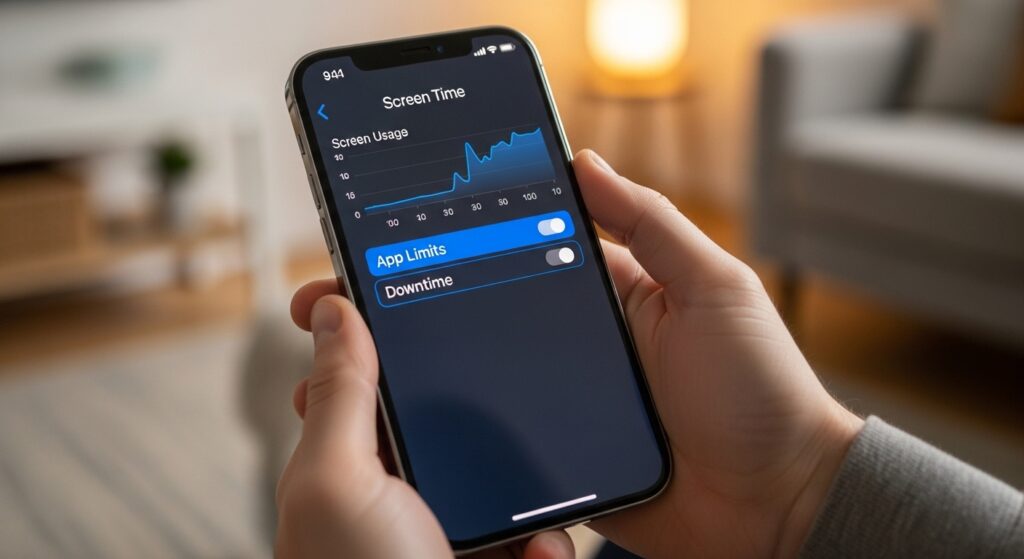
Step 1: Enable Screen Time and Set a Passcode
- Open the Settings app on your child’s iPhone or iPad.
- Scroll down and tap on Screen Time.
- Tap Turn On Screen Time, then tap Continue.
- Select This is My Child’s iPhone.
- The most critical step: Tap Use Screen Time Passcode. Create a 4-digit PIN that your child does not know. (Do not use their birth year or your phone’s unlock PIN). This ensures they cannot change the rules you are about to set.
Step 2: Schedule “Downtime” (The Bedtime Blocker)
Downtime acts as a digital curfew. When Downtime is active, the entire phone goes dark, and only phone calls and specific apps you allow will work.
- In the Screen Time menu, tap Downtime.
- Toggle it on and select Every Day or Customize Days (e.g., stricter hours on school nights).
- Set the schedule (for example, from 8:30 PM to 7:00 AM).
- Ensure the Block at Downtime switch is turned on.
Step 3: Set App Limits (The Gaming and Social Media Filter)
If you want your child to have their phone all day but only spend one hour on TikTok or Roblox, this is where you do it.
- Tap App Limits, then Add Limit.
- You can select entire categories (like “Social” or “Games”) or expand the category to select specific apps.
- Tap Next, then set the daily time limit (e.g., 1 hour and 30 minutes).
- Make sure Block at End of Limit is toggled on. Once the time is up, the app icon greys out, and they must ask you to input your passcode for more time.
Step 4: Always Allowed Apps
You probably want your child to always have access to educational tools or the ability to call you.
- Tap Always Allowed.
- Add essential apps like Phone, Messages, Maps, or the Calculator. These will remain active even during Downtime.
For more detailed, advanced configurations, you can visit Apple’s Official Screen Time Support Page.
How to Set Up Screen Time on Android (Google Family Link)
If your child uses an Android phone or tablet, Google’s solution is a powerful, standalone app called Google Family Link.
Unlike Apple’s built-in method, Family Link requires you to download an app on your phone (the parent device) to control your child’s phone remotely. It is an excellent, robust system that works seamlessly across all Android devices.
Step 1: Download and Connect Family Link
- Download the Google Family Link app from the Play Store (or App Store, if you use an iPhone) onto your personal phone.
- Open the app and follow the prompts to create a Google Account for your child (if they do not already have one).
- Grab your child’s Android device, log into their Google Account, and follow the on-screen instructions to link their device to your Family Link app.
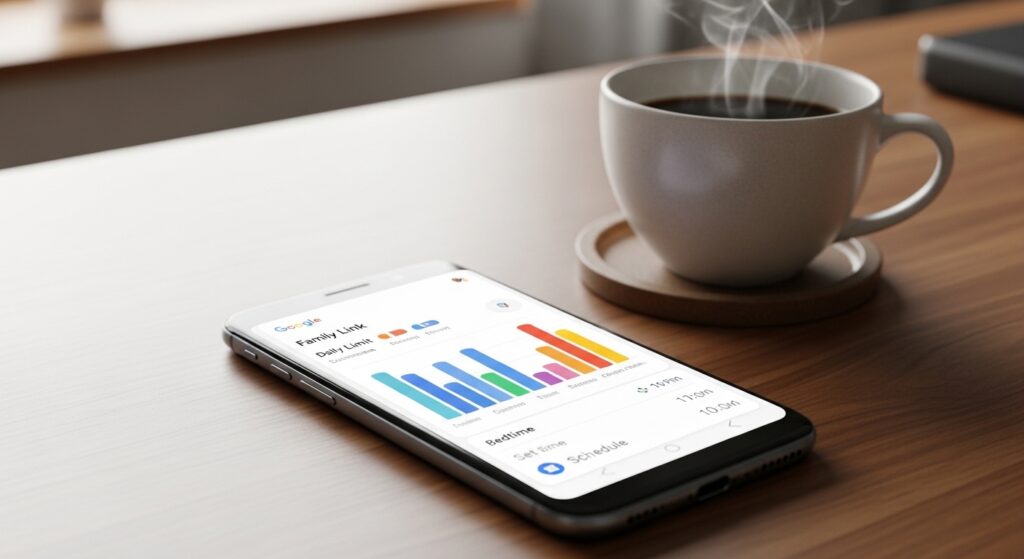
Step 2: Set Daily Device Limits
With Family Link, you control the big picture from your own phone.
- Open the Family Link app on your phone and select your child’s profile.
- Scroll down to the Daily limit card and tap Edit limits.
- You can set a blanket daily limit for the entire device (e.g., 2 hours total screen time per day). Once the 2 hours are up, the device locks, and they can only make emergency calls.
Step 3: Schedule Bedtime
- In your child’s profile, find the Bedtime card and tap Edit schedule.
- Set the hours when the device should lock down completely for sleep (e.g., 9:00 PM to 7:00 AM).
Step 4: Manage Specific App Usage
If you want to completely block a specific game or limit a social media app without locking the whole phone, you can do that too.
- Tap on the App activity card.
- Here, you will see a list of exactly how many minutes they spent on every app today.
- Tap the hourglass icon next to an app (like YouTube). You can choose to Set limit (e.g., 30 minutes a day) or completely Block the app so it disappears from their phone entirely.
For troubleshooting and deeper insights into Android management, Google’s Family Link Guide is a fantastic resource.
The Crucial Missing Piece: Device Security
Setting up screen time limits is a massive step toward digital wellbeing. However, managing how long your child uses a device is only half the battle. You must also manage what is secretly happening on that device.
Children frequently download free games or click on flashy advertisements that can accidentally install aggressive adware or even hidden spyware on their phones. If you have noticed your child’s tablet running unusually hot, or if the battery is draining in just a few hours, it might not be a hardware issue—it could be a malware infection.
We highly recommend performing a routine security check on your family’s devices. You can learn exactly what red flags to look for in our detailed master guide: How to Tell if Your Phone or Laptop is Infected with Malware.
Furthermore, to ensure hackers cannot access your child’s online gaming accounts or social media, teach them the importance of strong passwords and account locks. Our guide on Understanding Two-Factor Authentication is a great place to start.
Frequently Asked Questions (FAQs)
Q1: Can my child easily bypass Apple Screen Time? Tech-savvy teens often try tricks like changing the device’s time zone to bypass limits. To prevent this, go to Settings > General > Date & Time and turn off “Set Automatically,” then restrict Account Changes in the Screen Time settings.
Q2: Will Google Family Link let me read my child’s text messages? No. Family Link allows you to see how much time they spend on a messaging app, and it allows you to block the app, but it does not give you access to read the actual contents of their private messages or view their photos.
Q3: What if there is an emergency during “Downtime”? Both iOS and Android ensure that the basic “Phone” app remains active even when the phone is locked down. Your child will always be able to dial your number or call emergency services, regardless of the screen time limits you have set.
Conclusion: Communication is the Ultimate Control
Setting up digital boundaries using Apple Screen Time or Google Family Link is an incredibly effective way to manage your child’s digital diet. By establishing curfews and app limits, you remove the daily arguments and let the software play the “bad cop.”
However, software alone cannot raise a responsible digital citizen.
The most powerful parental control tool you have is an open dialogue. Sit down with your kids and explain why these limits are being put in place. Talk to them about the importance of sleep, the dangers of internet addiction, and the value of unplugged family time.
Technology is a wonderful servant but a terrible master. By taking control of their devices today, you are teaching them the vital skills they need to master their technology tomorrow.

Munir is a digital security researcher and software reviewer
with over 5 years of experience testing privacy tools, parental
control applications, and cybersecurity software. He founded
Tech Monitor Pro to provide honest, hands-on reviews that help
families and professionals make smarter decisions about the
tools they use online. When he is not testing the latest VPN
or email verification platform, he writes practical guides on
digital safety and online privacy.