

🔍 Quick Takeaway
Malware cannot hide its footprints. Fast battery drain, a device that runs hot while idle, sudden data spikes, apps you never installed and pop ups outside the browser are the clearest signs. If you spot them, disconnect from the internet, boot into safe mode, remove the suspicious app, run a reputable security scan, and change your passwords from a clean device. This guide shows you exactly how, on Android, iPhone, Windows and Mac.
Have you ever felt like your phone or laptop was just off? The battery dies hours early, the fan roars over a single browser tab, or an app you do not remember installing appears on the home screen. It is tempting to write it off as a glitch or an old battery. Sometimes that is all it is. But these are also the classic signs of malware, and ignoring them is how small problems turn into drained bank accounts and stolen identities.
Malware, short for malicious software, is no longer built to crash your computer for fun. It is built to stay invisible, sit in the background, and quietly read your messages, log your keystrokes and move your money. The good news is that malware is still just software. It uses power, memory and data, and that leaves a trail you can learn to read. This guide walks you through the warning signs, how to check each type of device, how the infection got in, and how to remove it for good.
Table of Contents
The Main Types of Malware and What Each One Wants
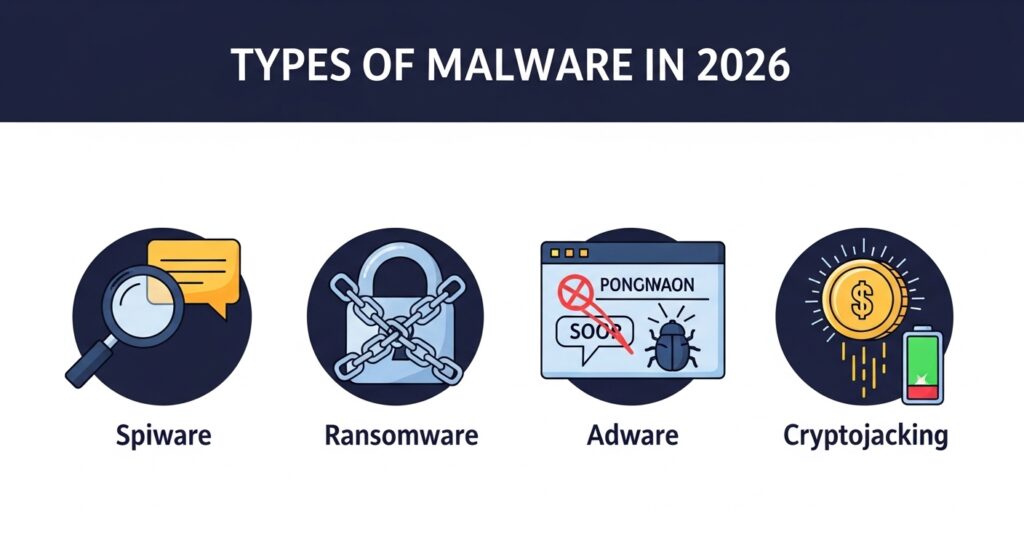
Malware is an umbrella word. Knowing the type helps you understand the symptoms.
Spyware and stalkerware. Spyware secretly watches you. It can log keystrokes, capture screenshots and even reach the camera or microphone. Stalkerware is a darker branch, often installed by someone you know, marketed as employee or child monitoring but abused to track location and read private messages. If you feel someone knows your movements, this is the likely cause.
Ransomware. This locks your files behind strong encryption and demands payment, usually in cryptocurrency, for the key. Modern ransomware groups operate like businesses, and a single infected laptop can take your documents and photos hostage in minutes.
Adware and fleeceware. Adware floods you with pop ups and hijacks your browser. Fleeceware hides behind harmless looking apps like flashlights or photo editors and quietly charges recurring fees until you dig into settings to cancel.
Cryptojacking. Here the attacker uses your device’s processor to mine cryptocurrency for themselves. You get the heat, the lag and the dead battery while they collect the reward.
Infostealers and banking trojans. A fast growing threat. These quietly harvest saved passwords, cookies and banking logins. The Godfather banking trojan, for example, spread by hiding inside apps installed from outside the official stores.
The Top Signs Your Device Is Infected
A malicious program needs power, memory and a connection. Watch how your device uses those three and the symptoms stand out.
| The sign | What it usually means |
|---|---|
| Battery drains far faster than normal | Spyware or a cryptominer running nonstop |
| Device is hot while sitting idle | A hidden process using the processor |
| Sudden spike in data usage | Spyware uploading your data to a server |
| Apps you never installed | Malware disguised with a system-like name |
| Pop ups outside the browser | An adware infection |
| Constant slowdowns and crashes | Malware eating memory |
| Security settings turned off by themselves | Malware lowering your defenses |
| Strange texts or calls you did not send | An SMS trojan |
| Camera or mic light turns on by itself | Stalkerware watching or listening |
| Browser redirects to odd search engines | A browser hijacker |
One sign on its own can be innocent. A three year old battery fades naturally. But when several of these appear together, treat it as an infection until proven otherwise. The camera or mic indicator dot lighting up while you are doing nothing is the loudest alarm of all.
How to Check an Android Phone
Android gives you freedom, which also makes it a bigger target, especially if apps are installed from outside the Play Store.
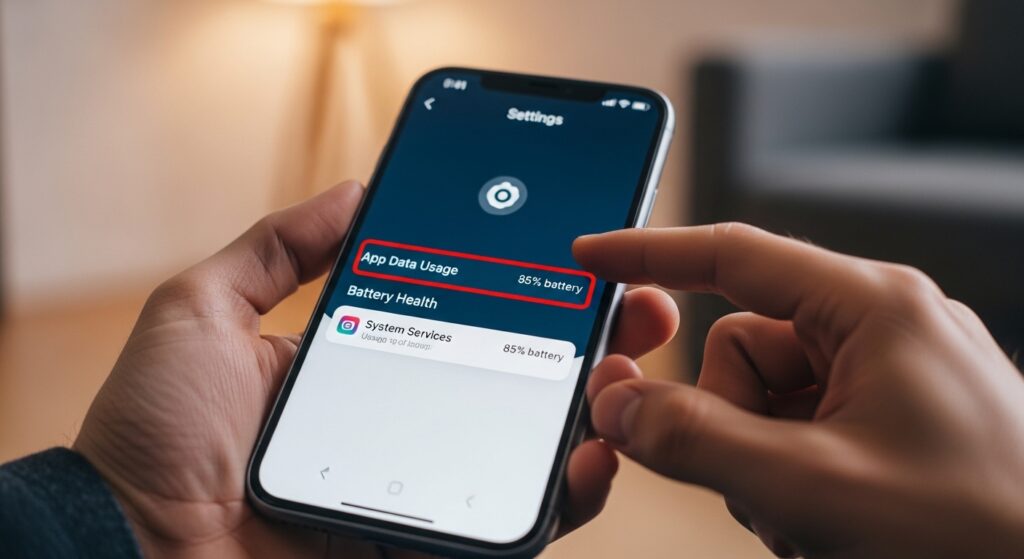
Check data by app. Settings, Network and Internet, Mobile Network, App Data Usage. An app you barely use sitting near the top is suspicious.
Check battery by app. Settings, Battery, Battery Usage. If a generic sounding app outranks your heavy apps, you found a likely culprit.
Review device admin apps. Settings, Security, Device Admin Apps. Malware hides here to stop you deleting it. The only entries should be tools like Find My Device. A flashlight or calculator with admin rights is malware.
How to Check an iPhone
Apple’s closed system makes traditional infections rare unless the phone is jailbroken. The real iPhone risk is a hidden profile or stalkerware installed by someone who knows your passcode.
Look for unknown profiles. Settings, General, VPN and Device Management. A configuration profile you did not approve for work or school means your phone is compromised. Delete it.
Review battery use. Settings, Battery, then scroll to see which apps consume power, and look for anything odd.
Check the App Privacy Report. Settings, Privacy and Security, App Privacy Report. It shows which apps reached your location, camera, mic and contacts recently. A simple app constantly pinging your location deserves a closer look.
How to Check a Windows PC
Windows is the most targeted system in the world.
Open Task Manager. Press Ctrl, Shift and Esc, open the Processes tab and sort by CPU or Memory. If a program you do not recognize is using most of your CPU, right click and search it online.
Check startup programs. In Task Manager, open the Startup tab. Disable any publisher-less program set to run at boot.
Run a Microsoft Defender Offline scan. Settings, Privacy and Security, Windows Security, Virus and threat protection, Scan options, then Microsoft Defender Offline scan. It reboots and catches deeply hidden threats before Windows fully loads.
How to Check a Mac
Macs are not immune, and adware and browser hijackers are common.
Open Activity Monitor. Spotlight, type Activity Monitor, sort by CPU and look for strange unnamed processes.
Check login items. System Settings, General, Login Items, and remove anything suspicious that launches at startup.
Check browser extensions. In Safari or Chrome, review extensions and remove any you do not remember installing. These are the top cause of Mac pop ups and redirects.
How the Malware Got In, and How to Shut the Door
Malware rarely forces its way in. Almost always, it is invited by accident through one of these doors.
Phishing links and fake messages. An urgent email or text about a delivery or a locked account, with a link that downloads a trojan. Strong account security helps here, so see our guide on two factor authentication.
Trojan apps and pirated software. A free movie player or cracked app that works, while quietly installing spyware.
Malicious attachments. A PDF or document from an unknown sender that runs a hidden script.
Fake security checks. A newer trick the FTC has warned about, where a fake CAPTCHA or pop up tells you to press keyboard shortcuts that paste and run hidden malware. Real CAPTCHAs never ask you to run commands.
Physical access. Someone with two minutes and your unlocked phone can install stalkerware. This is why a strong screen lock is non negotiable.
How to Remove Malware Safely
If the diagnostics confirm an infection, do not panic and do not throw the device away. Work through these steps in order.
Step 1. Disconnect from the internet. Turn on airplane mode on a phone, or switch off Wi-Fi on a laptop. This cuts the attacker’s connection and stops data leaving your device.
Step 2. Boot into safe mode. Safe mode loads only essential system files, so the malware cannot run. On Android, hold the power button, then press and hold Power Off until Reboot to Safe Mode appears. On Windows, hold Shift while clicking Restart, then Troubleshoot, Advanced options, Startup Settings, and choose safe mode. On Mac, restart and hold Shift until the logo appears.
Step 3. Uninstall the suspicious app. Remove the apps you flagged earlier. If the uninstall button is greyed out on Android, remove the app’s Device Admin rights first.
Step 4. Run a reputable security scan. Reboot normally and run a deep scan with a trusted security tool. Stick to well known names like Malwarebytes, Bitdefender or Norton, and never a random free cleaner from a pop up, since many are malware themselves.
Step 5. Change your passwords from a clean device. If malware was active, assume your saved logins are exposed. Change them from a different, trusted device, and turn on two factor authentication. A password manager makes this painless and flags which logins were already breached.
Reset Your Logins the Easy Way
Rebuild strong, unique passwords with NordPass
After an infection, NordPass helps you replace every exposed password fast and warns you if any of your logins show up in a future breach.
Get NordPass →Step 6. The factory reset, if needed. If the device still misbehaves, or you were hit by invasive stalkerware you cannot trust away, do a factory reset. Back up your photos manually first, then wipe the device. Important, do not restore from a backup made after the trouble started or you will reinstall the malware.
How to Prevent Future Infections
Removing malware is stressful. Preventing it is far easier.
Never tap links blindly in texts or emails, open the official app yourself instead. Keep the operating system and every app on automatic updates, since patches close the holes attackers use. Use a password manager so a single breach cannot unlock your whole life. Lock your screen with a strong passcode and biometrics so no one can install stalkerware in person. And on public Wi-Fi, use a reputable VPN to encrypt your connection. For a full walkthrough, read our guide on how to secure your smartphone from hackers and our public Wi-Fi safety guide.
Frequently Asked Questions
Can an iPhone get a virus just from a website? A true virus from browsing is very rare on iPhone. What is common is spam calendar invites or pop ups that lock the browser and push a fake tech support number. Clearing your browser history usually resolves it.
Will a factory reset remove spyware? A factory reset removes the vast majority of commercial stalkerware and malware. Very advanced nation state spyware can sometimes survive, so high risk users like journalists may need professional forensic help. For everyone else, a reset plus fresh passwords does the job.
Are free antivirus apps on the app stores safe? Be careful. Many free cleaner apps are adware that show fake warnings to push ads or paid upgrades. Stick to established security brands and do your research, as the FTC advises, since some software claiming to remove malware is malware.
Those scary virus warning pop ups, are they real? No. A web page cannot scan your device. A pop up screaming that you have several viruses is a scam designed to make you click or call. Never tap it and never call the number.
What does the green or orange dot at the top of my phone mean? It tells you an app is using your camera, the green dot, or your microphone, the orange dot. If it appears while you are doing nothing, an app is accessing them, which is a strong stalkerware warning.
Related guides: How to Secure Your Smartphone From Hackers | Two Factor Authentication Explained | Public Wi-Fi Safety Guide
Sources used in this article: FTC, Malware: How To Protect Against, Detect, and Remove It FTC, How to spot a CAPTCHA scam CISA, Mobile Communications Best Practice Guidance

Munir is a digital security researcher and software reviewer
with over 5 years of experience testing privacy tools, parental
control applications, and cybersecurity software. He founded
Tech Monitor Pro to provide honest, hands-on reviews that help
families and professionals make smarter decisions about the
tools they use online. When he is not testing the latest VPN
or email verification platform, he writes practical guides on
digital safety and online privacy.