
🔒 Quick Takeaway
Most phone hacks succeed through three doors, weak or reused passwords, phishing messages, and out of date software. Close those three, switch from SMS codes to passkeys or an authenticator app, lock down app permissions, and use a password manager, and you remove the vast majority of real world risk. None of it needs technical skill, just a few minutes in your settings.
Your phone holds your whole life. Banking apps, private messages, family photos, work accounts and the codes that protect everything else. That is exactly why it is the single most valuable target a criminal can reach, and they no longer need to touch it. Modern attacks happen quietly and remotely while the phone sits on your nightstand.
The good news is that you do not need expensive software or an IT background to lock things down. The U.S. cybersecurity agency CISA now says personal device security is something every individual has to own, and its own advice comes down to a handful of practical habits. Below are eleven of them, written for both Android and iPhone. Work through them once and your phone becomes a far harder target.
Table of Contents
| The threat | Your defense |
|---|---|
| Phishing and scam texts | Never tap links, verify in the official app |
| SIM swap stealing your codes | Use passkeys or an authenticator, not SMS |
| Public Wi-Fi snooping | Avoid banking on it, use a VPN |
| Lost or stolen phone | Strong passcode, Find My Device, remote wipe |
| Malicious apps | Official stores only, keep Play Protect on |
| Password reuse after a breach | A password manager with unique passwords |
| Zero click spyware | Fast updates, Lockdown Mode, regular restarts |
1. Keep Your Operating System and Apps Updated
This is the most basic rule and the most ignored. Those update prompts are rarely about new emojis, they carry security patches that close the exact holes hackers are scanning for. Hitting “remind me later” leaves the door open.
Turn on automatic updates. On iPhone go to Settings, General, Software Update, and switch on Automatic Updates. On Android go to Settings, System, System Update. Set the app store to update apps over Wi-Fi too, because an outdated app is a common backdoor. CISA also recommends choosing phones from brands that promise several years of monthly security updates, since a phone that stops getting patches slowly becomes an easy target.
2. Replace SMS Codes With Passkeys or an Authenticator
A password alone is one lock. Two factor authentication adds a second one, so a stolen password is not enough on its own. But not all second factors are equal. Codes sent by text can be stolen through a trick called SIM swapping, where a criminal ports your number to their own SIM.
The stronger move, now recommended by CISA, is to stop relying on SMS codes. Use an authenticator app like Google Authenticator or Authy, or better still a passkey, which uses your face or fingerprint and cannot be phished. Turn this on for your email, your bank, your social accounts and your Apple or Google account first. If passkeys are new to you, our guide on two factor authentication and why you need it breaks it down.
3. Lock Down Public Wi-Fi
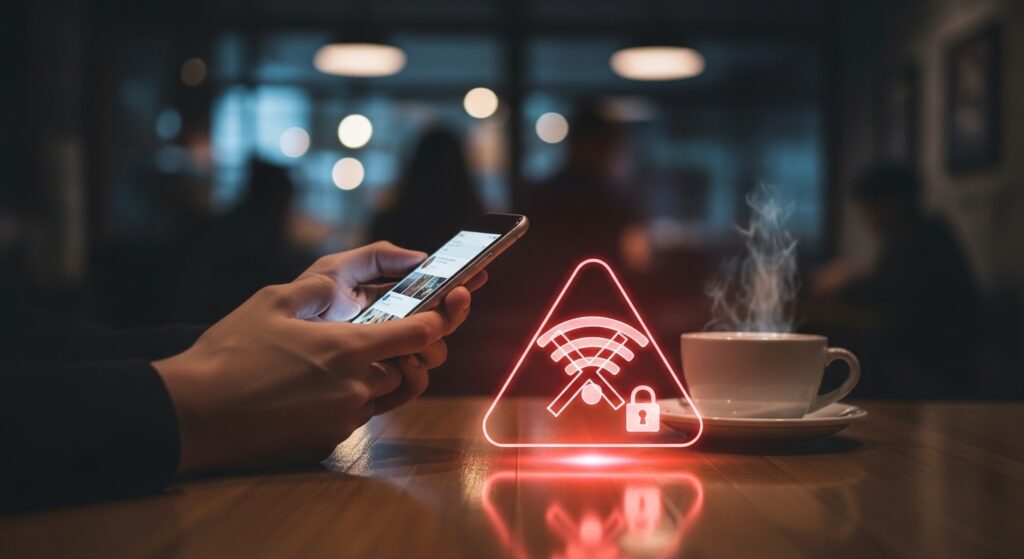
Free Wi-Fi in a cafe or airport is convenient and risky. A criminal can set up a fake network with a trusted sounding name, then read everything you send through a man in the middle attack. They can also snoop on a real but unsecured network.
Never bank, shop or log in to anything important on public Wi-Fi. If you must use it, run a reputable VPN, which scrambles your traffic so it cannot be read. Turn off auto connect so your phone asks before joining new networks, and for an extra layer set a private DNS resolver such as Cloudflare 1.1.1.1 or Google 8.8.8.8. Our public Wi-Fi safety guide walks through the settings.
4. Audit Your App Permissions
A flashlight app does not need your microphone, and a wallpaper app does not need your contacts. Many free apps make money from your data, and some are spyware in disguise that listen or track location around the clock.
On iPhone go to Settings, Privacy and Security, and review which apps can reach your location, camera and microphone. On Android go to Settings, Privacy, Permission Manager. If a permission makes no sense for what the app does, switch it off or delete the app. CISA suggests reviewing app permissions and linked devices weekly.
5. Use a Strong Passcode, Biometrics and Lockdown Mode
A four digit code like 1234 is no protection at all, automated tools guess it in seconds. Move to a six digit code or, better, an alphanumeric password, and turn on Face ID or fingerprint unlock so security does not slow you down. Set the screen to lock the moment it turns off.
If you are a higher risk user, for example a journalist or someone handling sensitive work, iPhone’s Lockdown Mode strips back the features that advanced spyware exploits. It is a strong shield with only minor day to day trade offs.
6. Spot Modern Phishing, Smishing and Fake QR Codes
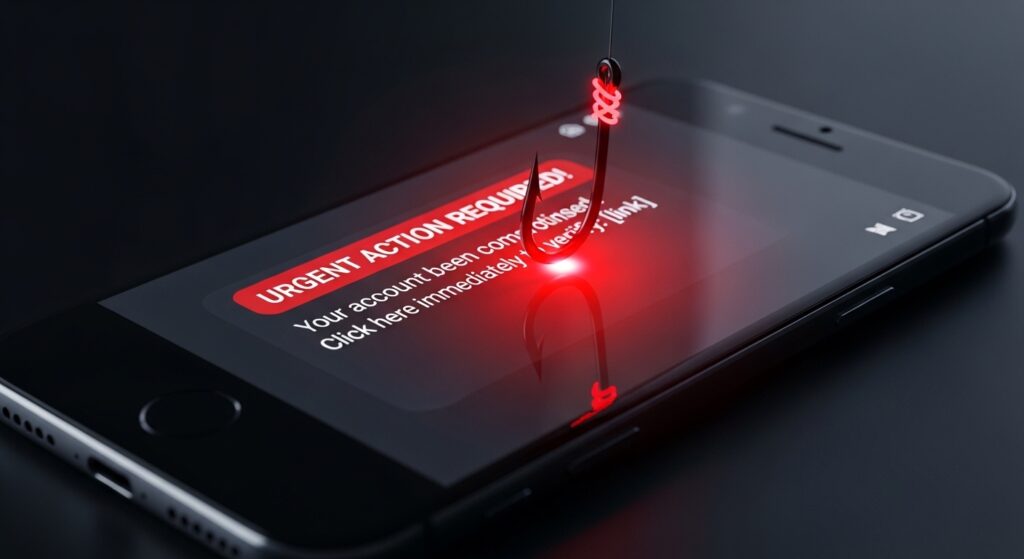
Phishing is a fake message pretending to be your bank, a delivery service or a streaming app, designed to trick you into handing over a password or code. The old giveaway was bad spelling. That is gone. Attackers now use AI to write flawless, urgent messages, send them by text, which is called smishing, and even hide traps inside QR codes.
Treat urgency as a warning sign. Never tap a link in an unexpected message. If your bank texts you, open the bank’s own app or call the number on your card instead. Check the sender’s real address, not just the display name. And be wary of any message, even inside a messaging app, that asks you to enter a PIN or one time code, since CISA flags this as a common takeover trick.
7. Use Encrypted Messaging and Check Your Linked Devices
For private conversations, use an end to end encrypted app such as Signal, which CISA and the FBI have both recommended. Encryption means only you and the recipient can read the messages.
There is a newer risk worth knowing. Many messaging apps let your account run on several devices at once through a “linked devices” feature, and attackers abuse it to quietly read your chats. Open your messaging app settings, look at linked devices, and remove anything you do not recognize. Turning on disappearing messages adds another layer for sensitive chats.
8. Stop Reusing Passwords, Use a Password Manager
This is the mistake that undoes everything else. If you reuse one password and a single small website is breached, attackers take that email and password pair and try it everywhere, your bank, your email, your social accounts. It is called credential stuffing and it is automated.
The fix is simple. A password manager creates and stores a long, unique password for every account, and you only remember one master password. The built in options from Apple and Google are a fine free start, but a dedicated manager adds breach alerts, secure sharing and cross device syncing.
Our Top Pick
Lock every account with a unique password using NordPass
NordPass creates and stores strong passwords across your phone and computer, and warns you the moment one of your logins appears in a breach.
Get NordPass →9. Install Apps Only From Official Stores
The Apple App Store and Google Play are not perfect, but they screen for malware and are far safer than the open web. Android lets you sideload apps from outside the store, and that is where trouble hides. Criminals repackage free versions of paid apps with spyware or banking malware baked in. The Godfather banking trojan spread exactly this way.
Never install an app from a random website or a link in a video description. On Android, keep Google Play Protect on and do not allow your browser to install apps. On iPhone, do not jailbreak the device, since that removes Apple’s built in protections entirely.
10. Turn On Find My Device and Remote Wipe
If your phone is lost or stolen, the data matters more than the hardware. Both Apple and Google give you free tools to find the phone on a map, make it ring, lock it with a message, or erase everything remotely.
On iPhone go to Settings, your name, Find My, and switch on Find My iPhone and Send Last Location. On Android go to Settings, Security, Find My Device. Practice using it from a computer once, so you are not learning under pressure during a real emergency.
11. Restart Your Phone Regularly and Review What Is Installed
This sounds too simple, yet it works. Some of the most advanced spyware is “zero click,” meaning it can infect a phone with no tap or download from you, and it often lives in temporary memory. A full power off and on clears that memory and can break the infection. Pick a day, restart weekly, and while you are at it scroll through your installed apps and delete anything you do not recognize or use.
✅ Your 5 Minute Phone Security Checklist
☐ Automatic updates on for the OS and all apps
☐ SMS codes swapped for passkeys or an authenticator app
☐ A password manager set up with unique passwords
☐ App permissions reviewed, anything unnecessary switched off
☐ Find My Device turned on
☐ Auto connect to Wi-Fi turned off
☐ Phone restarted, unknown apps deleted
What to Do if Your Phone Is Already Hacked
Watch for sudden battery drain, the phone running hot, unfamiliar apps, a flood of pop ups, or a spike in data use. If you see these signs, change your important passwords from a different device, remove apps you do not recognize, and if the problem continues, back up your photos and do a factory reset. Our guide on how to tell if your phone or laptop is infected with malware covers the warning signs in detail.
Frequently Asked Questions
How do I know if my phone has been hacked? Common signs are fast battery drain, overheating, apps you did not install, constant pop ups and unusual data spikes. Any one of these is worth investigating, several together is a strong signal.
Are iPhones safer than Android phones? Both are very secure when kept updated. iPhone’s more closed system makes traditional malware harder, while Android gives more control and now includes strong protections like Play Protect. The bigger risk on either platform is the user falling for a phishing message.
Does a factory reset remove a hacker? Usually yes, since it wipes installed apps and most malware. Change your account passwords afterward from a clean device, and only restore apps from the official store.
Is it safe to use public Wi-Fi with a VPN? A reputable VPN encrypts your traffic and makes public Wi-Fi far safer, but still avoid sensitive logins where you can, and never use a free VPN that may log or sell your data.
Should I install antivirus on my phone? Built in protections plus the habits in this guide cover most users. A reputable security app can add value on Android, but it is no substitute for updates, careful downloads and strong passwords.
Does airplane mode stop a hacker? Temporarily, yes. It cuts cellular, Wi-Fi and Bluetooth, which halts any live data transfer or tracking. It is a useful emergency step while you secure your accounts.
Related guides: Two Factor Authentication Explained | What Are Passkeys | Best Encrypted Messaging Apps
Sources used in this article: CISA, Mobile Communications Best Practice Guidance FTC, How To Protect Your Phone From Hackers Cybernews, CISA updates rules for iPhone and Android security

Munir is a digital security researcher and software reviewer
with over 5 years of experience testing privacy tools, parental
control applications, and cybersecurity software. He founded
Tech Monitor Pro to provide honest, hands-on reviews that help
families and professionals make smarter decisions about the
tools they use online. When he is not testing the latest VPN
or email verification platform, he writes practical guides on
digital safety and online privacy.